Free and Pro Access
MinkNote is available in two versions: Free and Pro. Whichever you choose, your notes are always available to open and read.
The main difference is where MinkNote lets you create and edit content.
Free
With Free, you can create and edit notes in one journal that must exist at this location:
~/Documents/MinkNote/Journal
You can use this journal normally: create notes, edit them, organise them into as many folders as you like, add images and tags, and delete things you no longer need.
Your other journals remain available too, but are read-only.
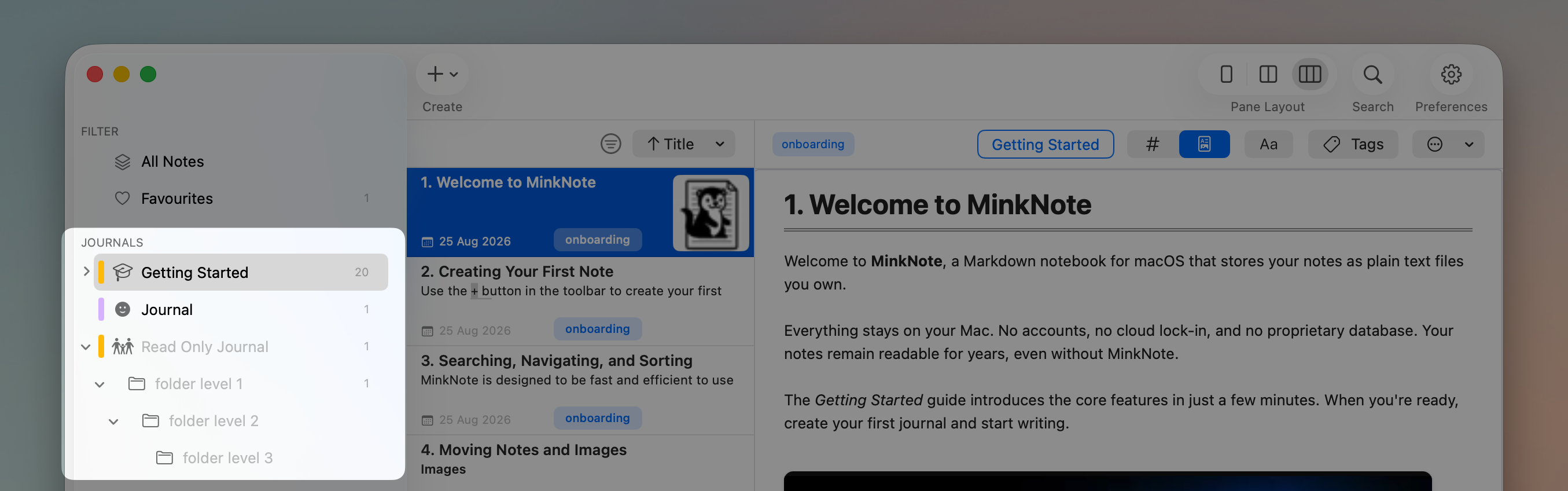
Nothing is hidden or removed just because it’s read-only. You can still browse your notes, search them, follow links and export your content.
Pro
Pro removes the Free editing restrictions.
You can create and edit notes across your journals, add journals and folders, move things around, and organise your Markdown files wherever you choose to keep them.
Upgrading doesn’t require moving or converting anything. Your existing notes simply become editable where appropriate.
If a Pro subscription ends, your notes stay exactly where they are. You can continue to read everything, while areas outside the Free journal become read-only.
Projects
Projects let you open different collections of Markdown files in MinkNote.
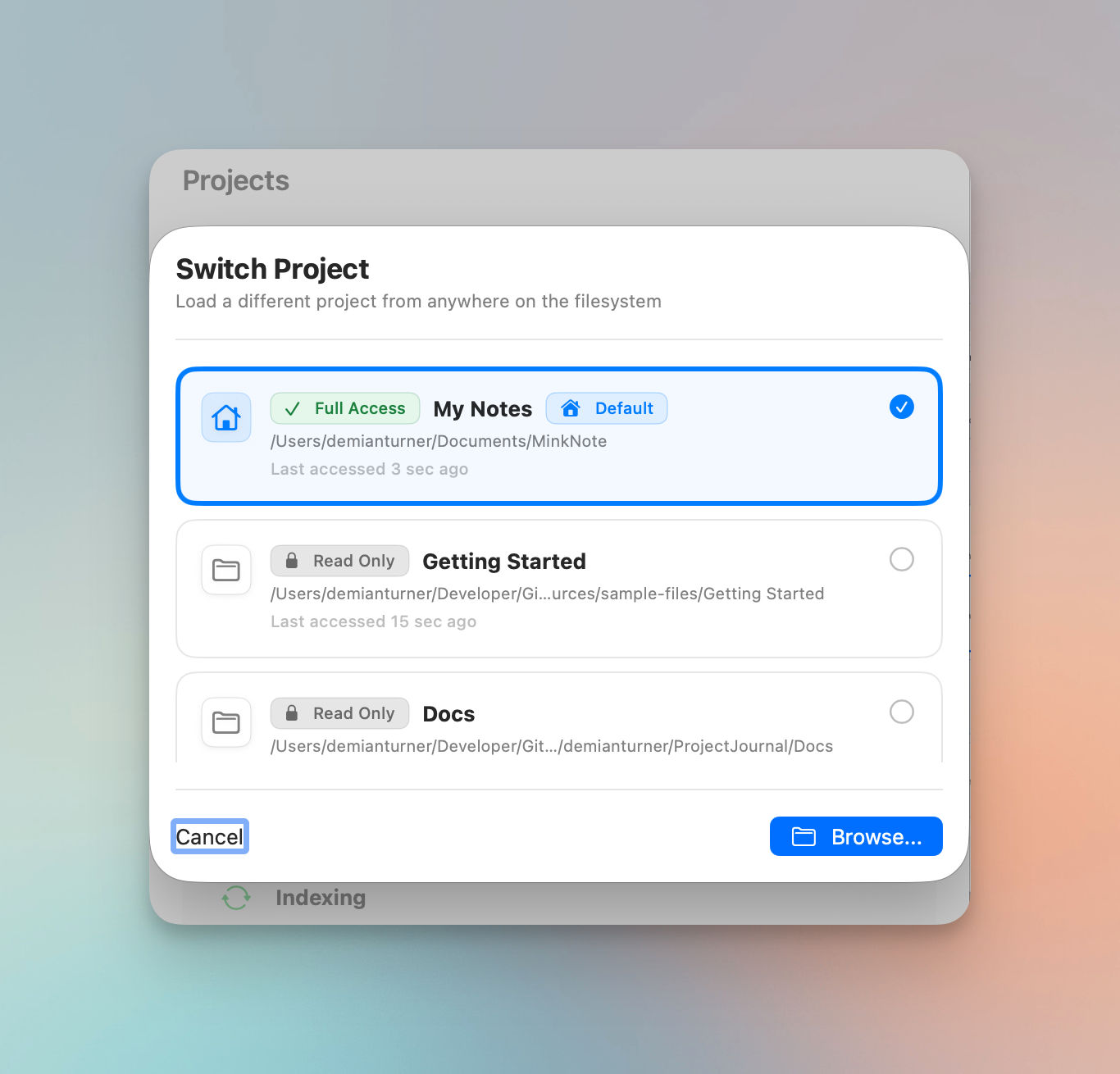
With Free, additional projects are read-only. With Pro, you can give MinkNote full access and work with them normally.
The built-in project is called My Notes. It always points to ~/Documents/MinkNote and contains the Journal journal used by Free.
The project switcher shows the access available for each project.
Read-only journals and notes
MinkNote makes read-only areas easy to recognise:
- Journals appear lighter in the sidebar
- A lock appears in the toolbar when you open a note that can’t be edited
- A read-only indicator appears over the content
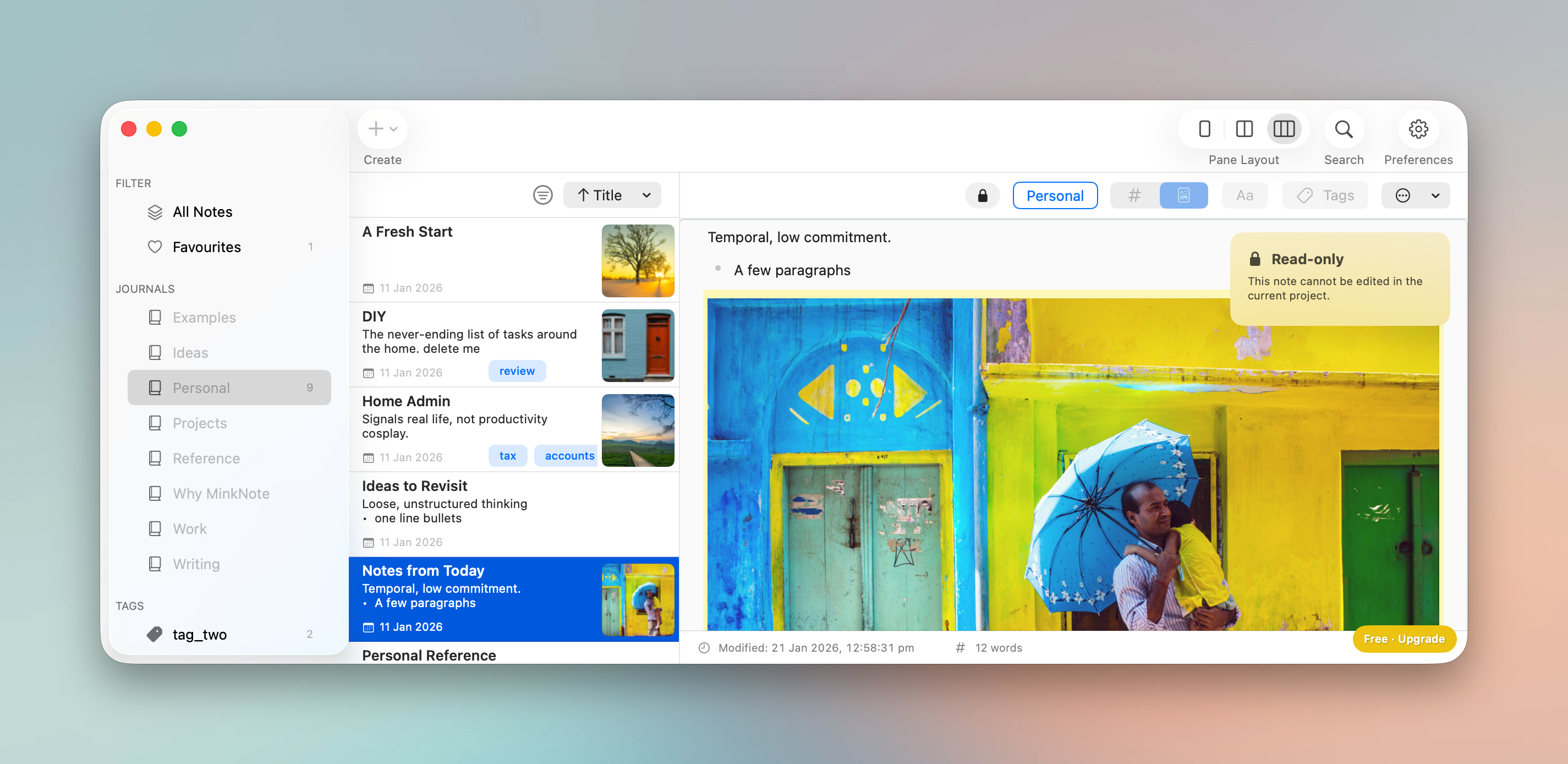
Read-only content otherwise works much like any other content in MinkNote. You can browse it, search it and open notes normally.
Actions that would change the files aren’t available in MinkNote. For example, you can’t edit a read-only note or move notes into a read-only journal.
Your files are still yours to edit however you like. Open one in another editor, such as TextEdit, make your changes, and they’ll be reflected in MinkNote.
This also means you can safely open other collections of Markdown files in MinkNote without giving MinkNote permission to change them.
Getting Started
The Getting Started journal contains MinkNote’s sample notes and guides.
It’s managed separately from your own journals and doesn’t count as an additional Free journal. You can show or hide the sample notes from MinkNote’s settings.
Your files stay yours
Free and Pro don’t use different file formats or separate versions of your notes. Your content remains standard Markdown files in folders on your Mac.
Upgrading to Pro doesn’t migrate your files, and ending a Pro subscription doesn’t move or delete them. It only changes which locations MinkNote can edit.