Settings
Settings
MinkNote is designed to work well with its defaults, but you can change how it looks, how your notes are saved, and how the editor behaves.
Open MinkNote → Settings or press ⌘, to get started.
Project
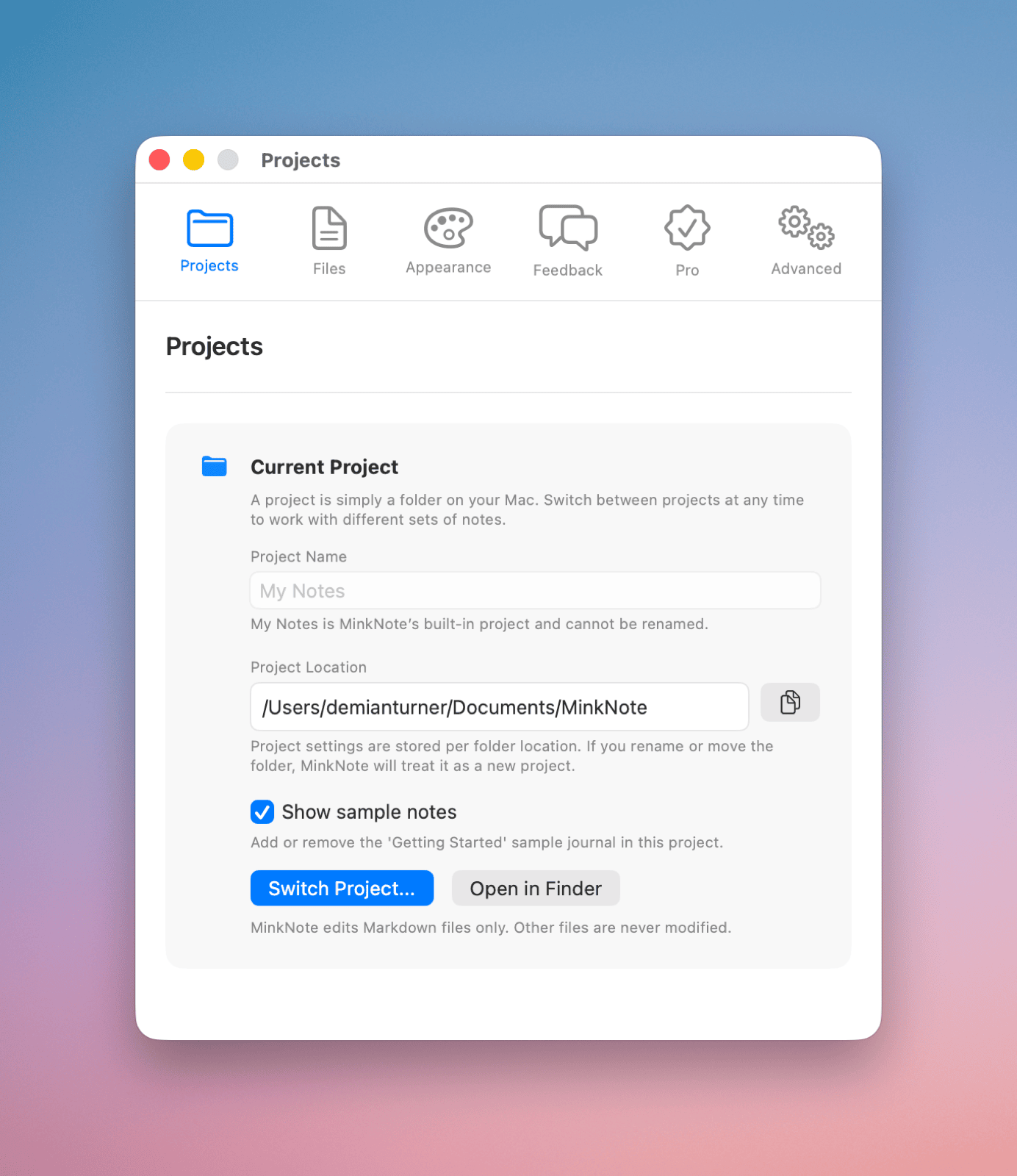
A MinkNote project is simply a folder on your Mac containing your journals, notes, and images.
Current Project
Settings shows the location of your current project.
From here you can:
- Copy its full path
- Open in Finder to see the files directly
- Switch Project… to open a different collection of notes
Switching projects doesn’t move, copy, or change your files. It simply tells MinkNote which folder you want to work with.
Getting Started Notes
Use Show Sample Notes to show or hide the Getting Started journal.
You can remove these notes once you’re familiar with MinkNote and bring them back later if you need them.
Files
Automatically Save Notes
With automatic saving enabled, MinkNote saves changes as you type.
Turn it off if you prefer to decide when changes are saved. You can then save the current note with ⌘S.
Hide Frontmatter
MinkNote uses frontmatter to store information about a note.
You normally don’t need to see it. Enable Hide Frontmatter for a cleaner editing experience, or turn it off when you want to inspect or edit the metadata directly.
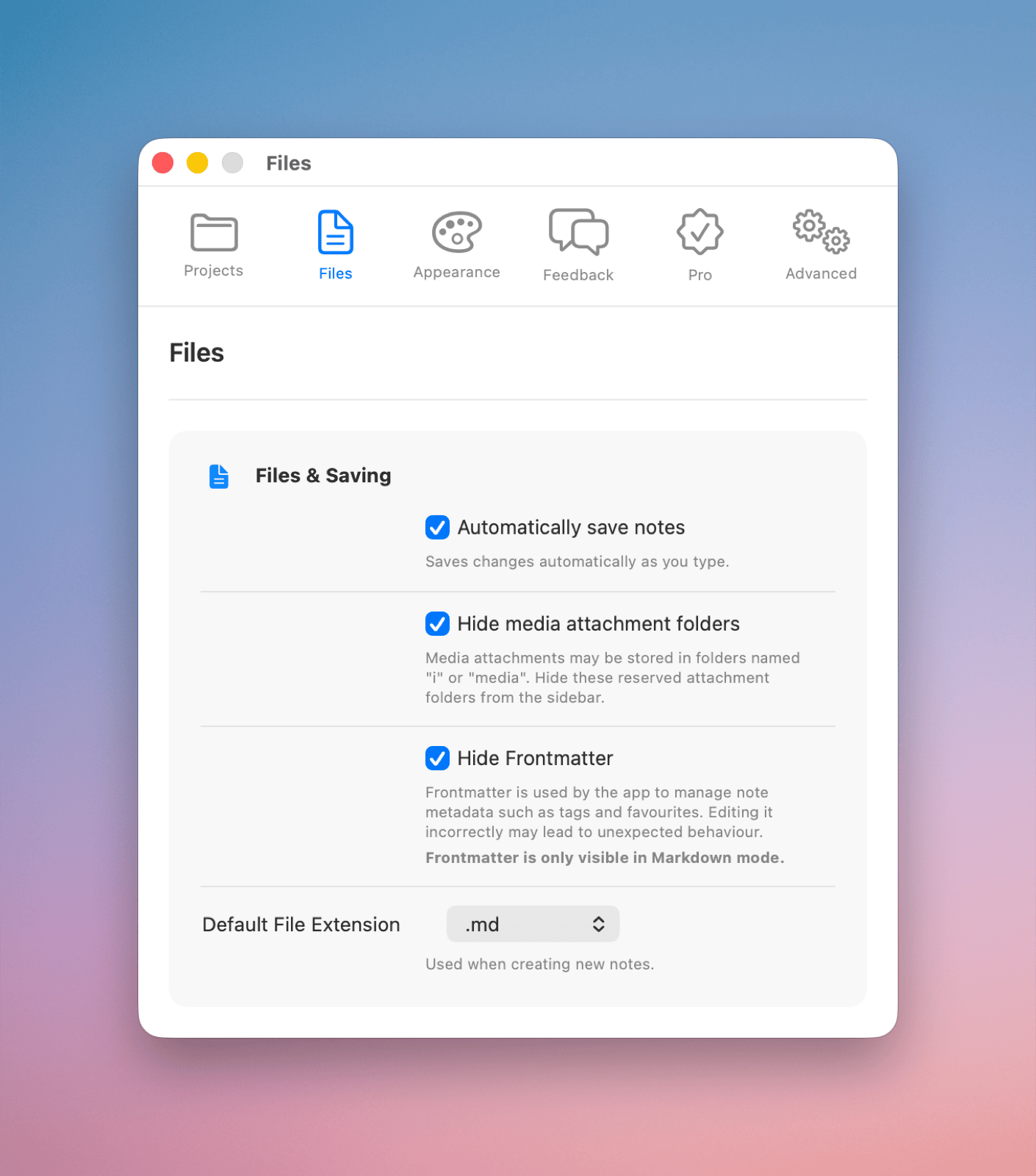
Image Attachment Folders
Images added to notes are stored alongside your Markdown files in i folders.
These folders are hidden in MinkNote by default to keep your journal structure uncluttered. You can make them visible whenever you want direct access to them.
Your images remain ordinary files that you can also access through Finder.
Default File Extension
New notes use the standard .md Markdown extension by default.
You can instead choose .markdown or .txt if that works better with other apps or an existing collection of files.
Appearance
Light and Dark Mode
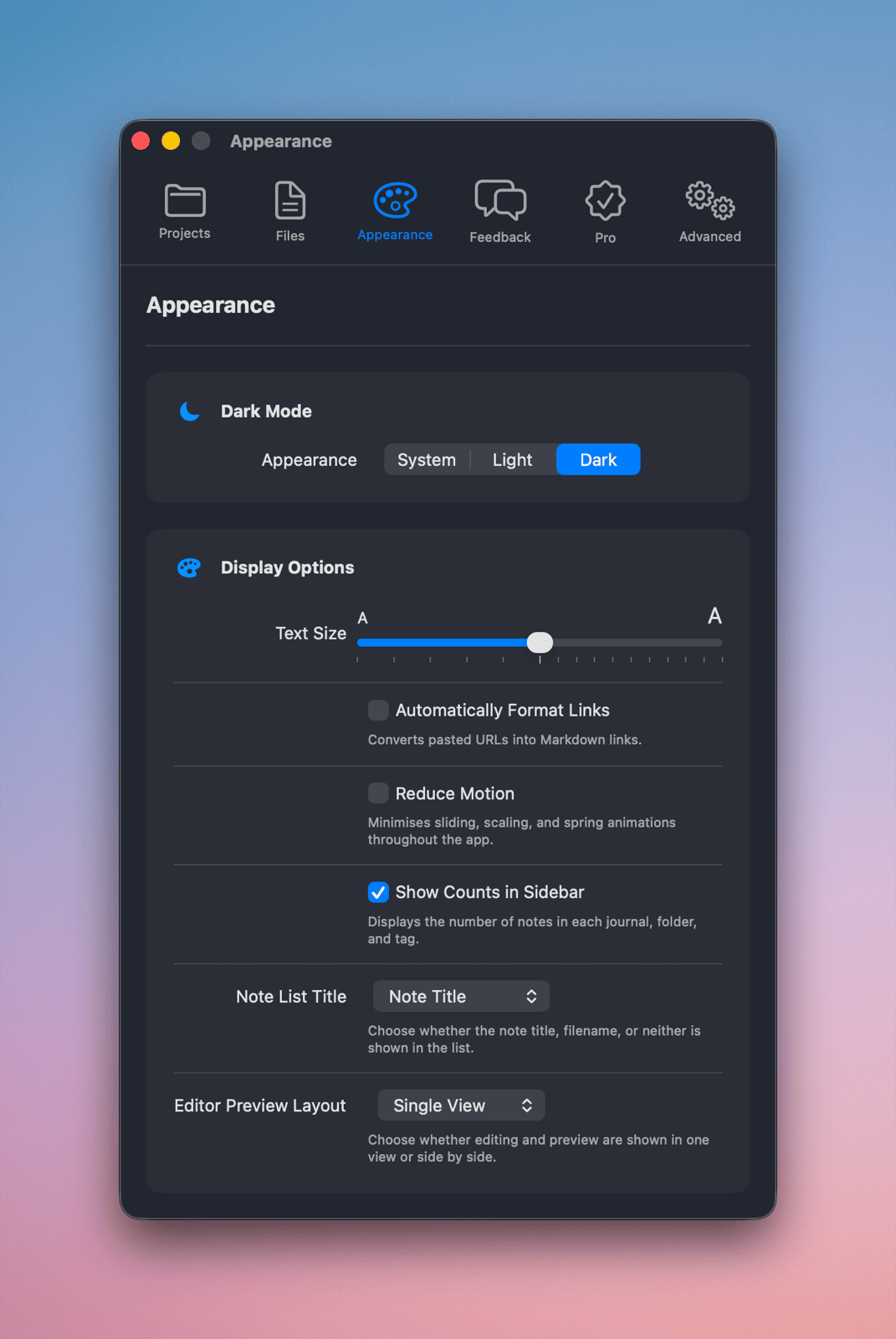
Choose System, Light, or Dark appearance.
System follows your Mac’s current appearance automatically.
Text Size
Use Text Size to make text in the editor larger or smaller.
The centre position represents the standard size.
Reduce Motion
Enable Reduce Motion if you prefer less animation and movement while using MinkNote.
Automatically Format Links
When Automatically Format Links is enabled, URLs you paste into a note are automatically turned into Markdown links.
Turn it off if you prefer pasted URLs to remain exactly as entered.
Sidebar Counts
MinkNote can show the number of notes beside journals, folders, and tags in the sidebar.
Turn Show Counts in Sidebar off for a simpler sidebar.
Note List Title
Choose what MinkNote displays as the main heading for each note in the note list using Note List Title.
You can use the note’s Title, its Filename, or show neither.
Using titles works particularly well when each note has a clear top-level heading (#) describing its contents.
Editor Preview Layout
Use Editor Preview Layout to choose how MinkNote displays your notes:
- Single View gives the editor the full available space.
- Side-by-Side shows your Markdown and its rendered result together.
Choose whichever layout best suits the way you’re working. You can change it at any time.
Feedback and Privacy
Settings also gives you quick access to information about MinkNote and ways to get in touch.
Use Feedback to find ways to share comments or report a problem.
Under Privacy, you can review MinkNote’s privacy information and available controls. Legal contains the applicable terms.
MinkNote Pro
The Pro section shows your current MinkNote Pro status and available purchase options.
From here you can review pricing, check whether Pro is active, manage your subscription, or restore an existing purchase.
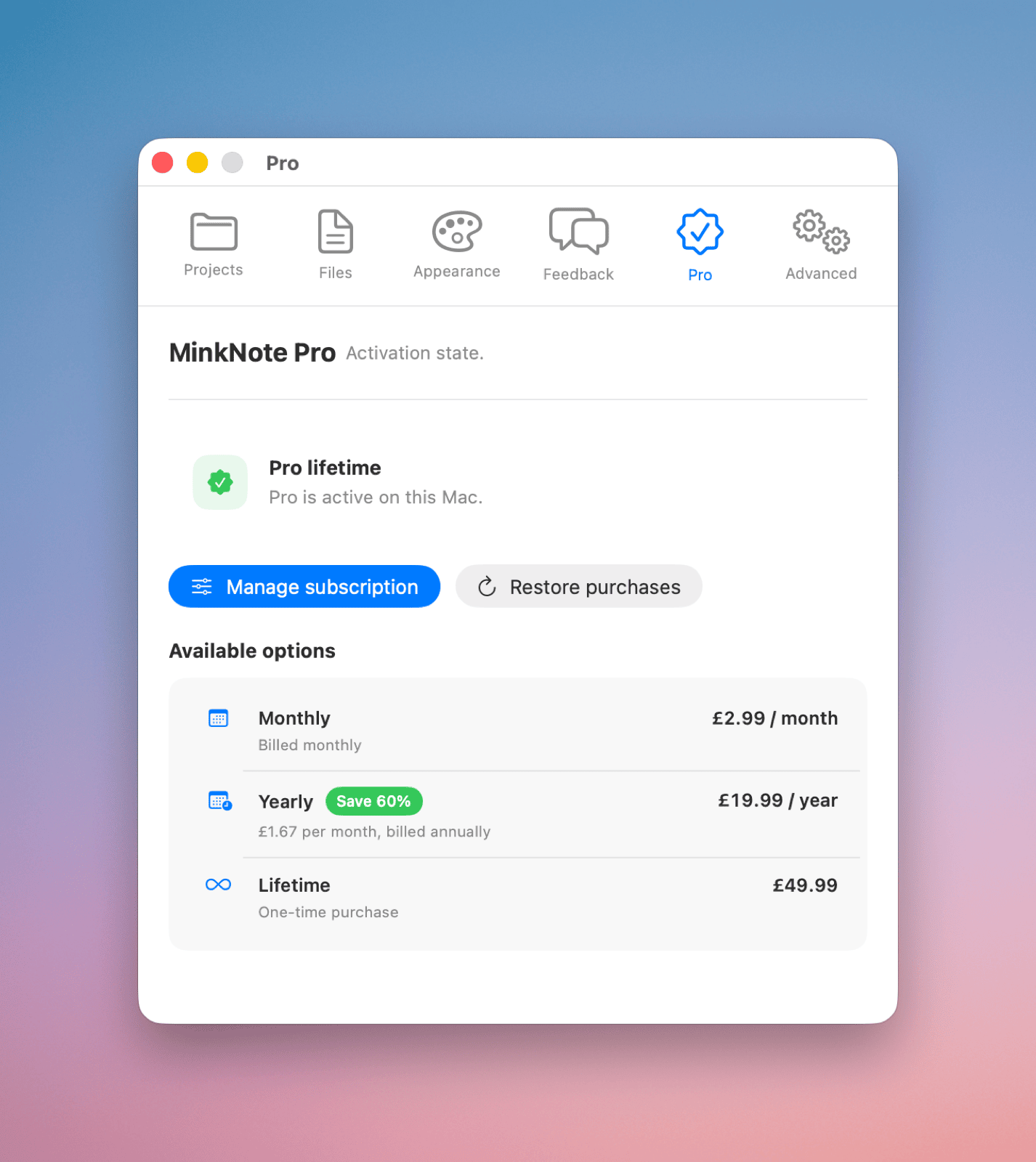 Your notes are not tied to MinkNote Pro. They remain Markdown files in your project folder that you can access directly from your Mac.
Advanced
Rebuild Indexes
MinkNote maintains indexes to support features such as search and tag browsing. If search or tags aren’t working correctly, use Rebuild Indexes in the Advanced tab.
Rebuilding indexes doesn’t modify your notes or other project files.
Debug Window
The Debug Window is a developer tool to help monitor MinkNote’s performance.