Changes Made Outside MinkNote
MinkNote stores your notes as ordinary Markdown files. This means you can open and edit them with other apps, command-line tools, or AI agents at any time.
MinkNote watches notes you currently have open. If another app changes one of these files while you’re editing it, MinkNote detects the change and makes sure your work isn’t silently overwritten.
When a note changes
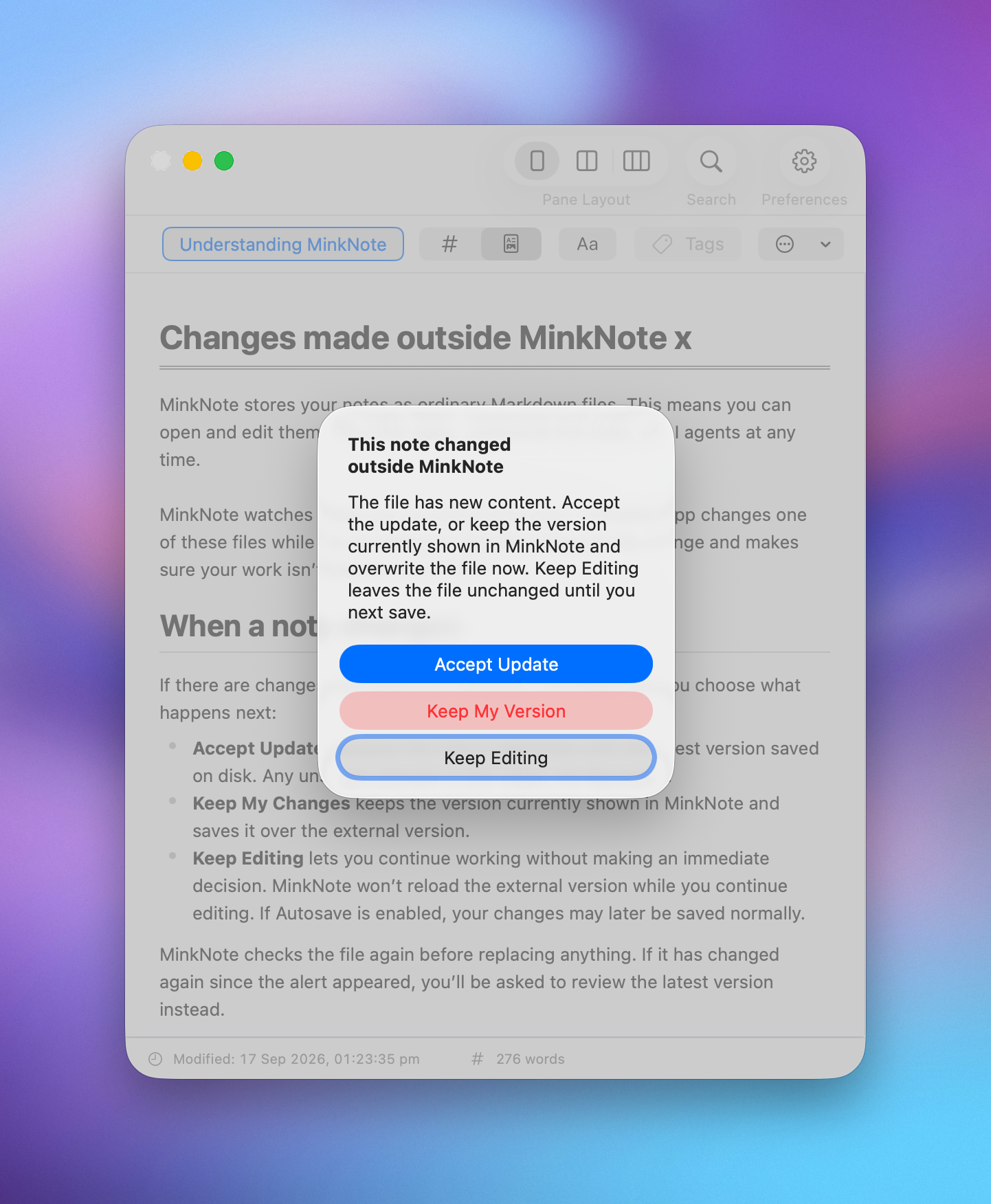
If there are changes that need your attention, MinkNote lets you choose what happens next:
- Accept Update replaces the note in MinkNote with the latest version saved on disk. Any unsaved changes in the editor are discarded.
- Keep My Changes keeps the version currently shown in MinkNote and saves it over the external version.
- Keep Editing lets you continue working without making an immediate decision. MinkNote won’t reload the external version while you continue editing. If Autosave is enabled, your changes may later be saved normally.
MinkNote checks the file again before replacing anything. If it has changed again since the alert appeared, you’ll be asked to review the latest version instead.
iCloud Drive
The same protection applies to notes stored in iCloud Drive once changes are available locally on your Mac.
If a file is temporarily unavailable, MinkNote keeps your current note and any unsaved changes intact rather than replacing them or reporting them as saved.
Do I need to do anything?
Usually, no. File monitoring happens automatically while a note is open.
You’re most likely to see an external-change alert if you deliberately edit the same Markdown file with another app or tool while it is also open in MinkNote.