Finding Your Notes
As your collection grows, MinkNote gives you several ways to get back to the information you need. You can search across everything, narrow down what you’re already browsing, find text inside a note, or keep important notes close at hand with Favourites and pins.
Search All Notes
Use Search All Notes when you know what you’re looking for but not where you put it.
Press ⌘⇧F to search across all notes in all journals.
Results appear as you type. Use ↑ and ↓ to move through them and press Return to open the selected note.
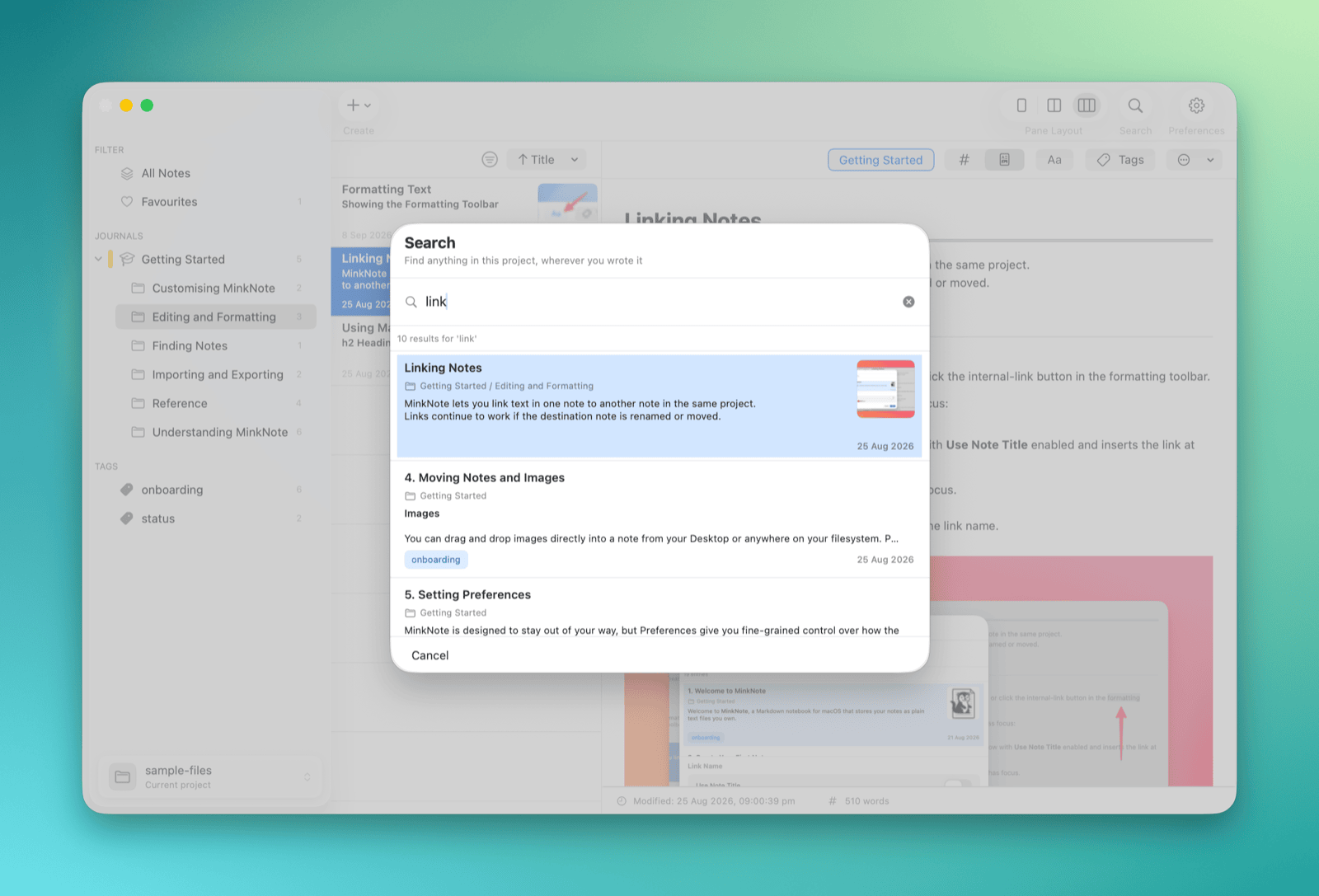 This is the quickest way to find something when you don’t remember which journal or folder contains it.
Filter the Notes You’re Browsing
Sometimes you already know roughly where a note is. In that case, you can filter the notes you’re currently browsing instead of searching everything.
Press ⌘⌥F and start typing to narrow down the note list.
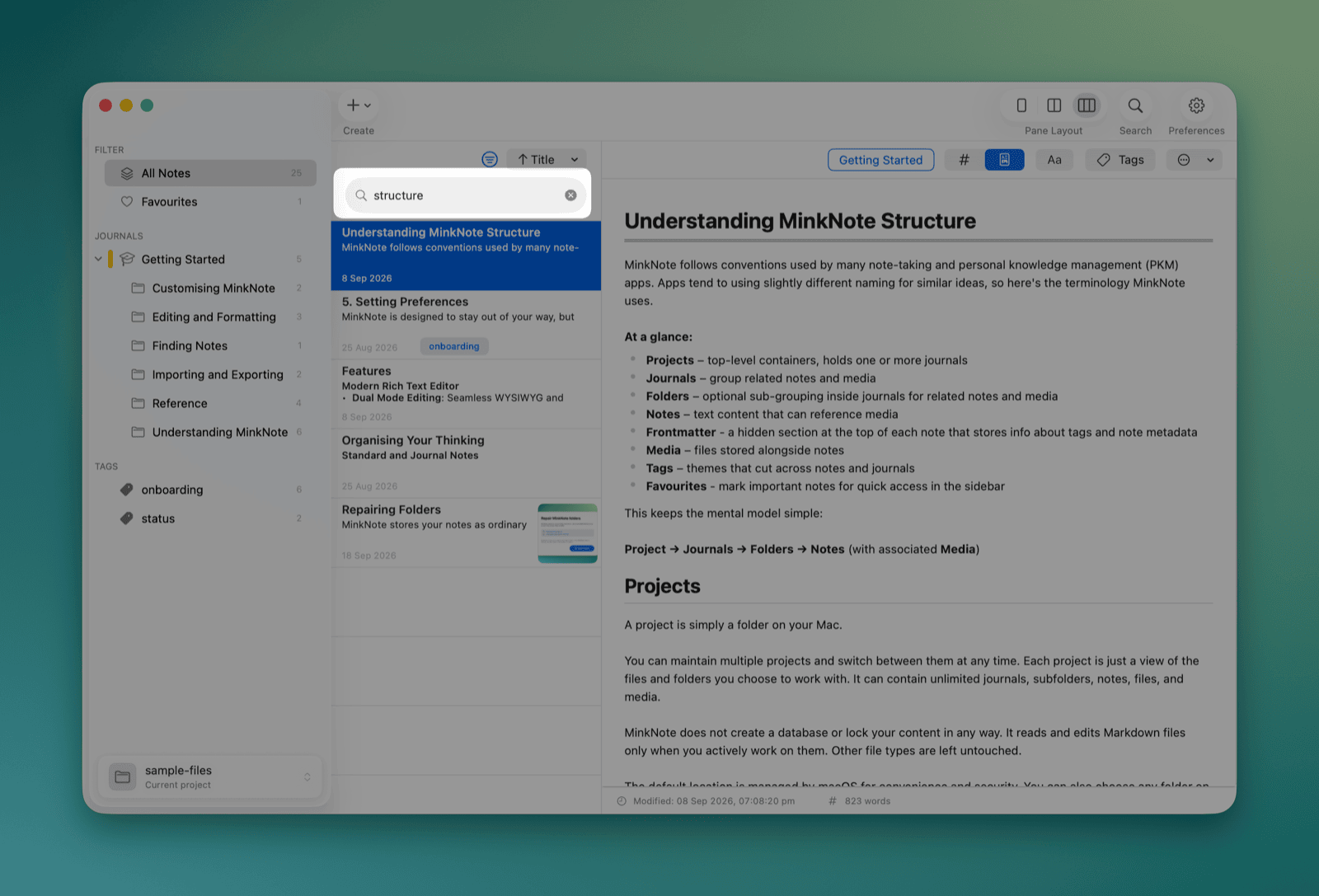 Filtering is useful when you’re working within a journal or folder and want to quickly reduce a longer list to a few matching notes.
Find Text in a Note
To find a word or phrase inside the note you’re currently viewing, press ⌘F.
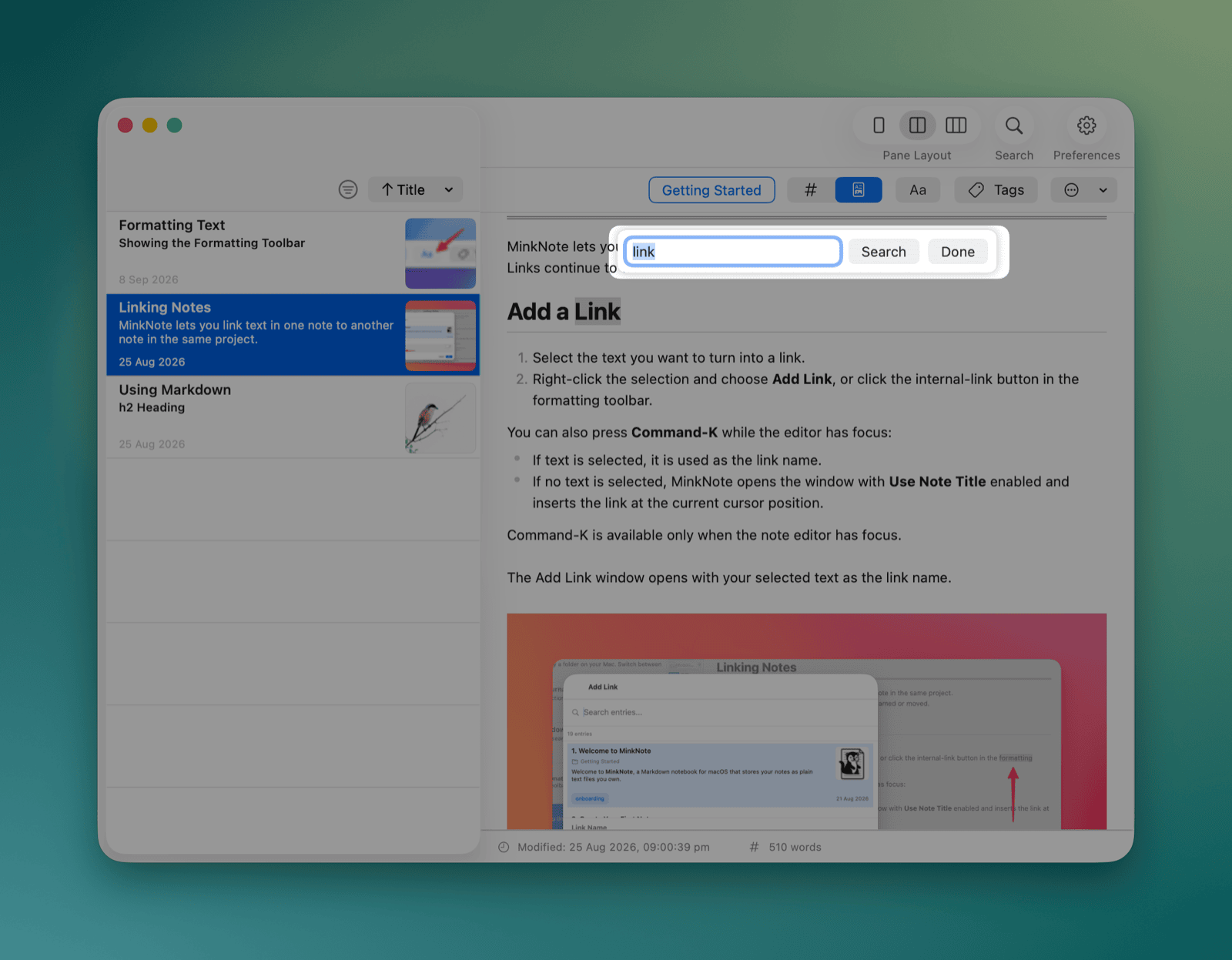 MinkNote highlights matching text so you can move quickly through longer notes without having to scan the whole document.
Favourites
Use Favourites for notes you want to return to regularly.
Mark a note as a favourite and it will appear under Favourites in the sidebar, giving you a single place for important notes from across your journals.
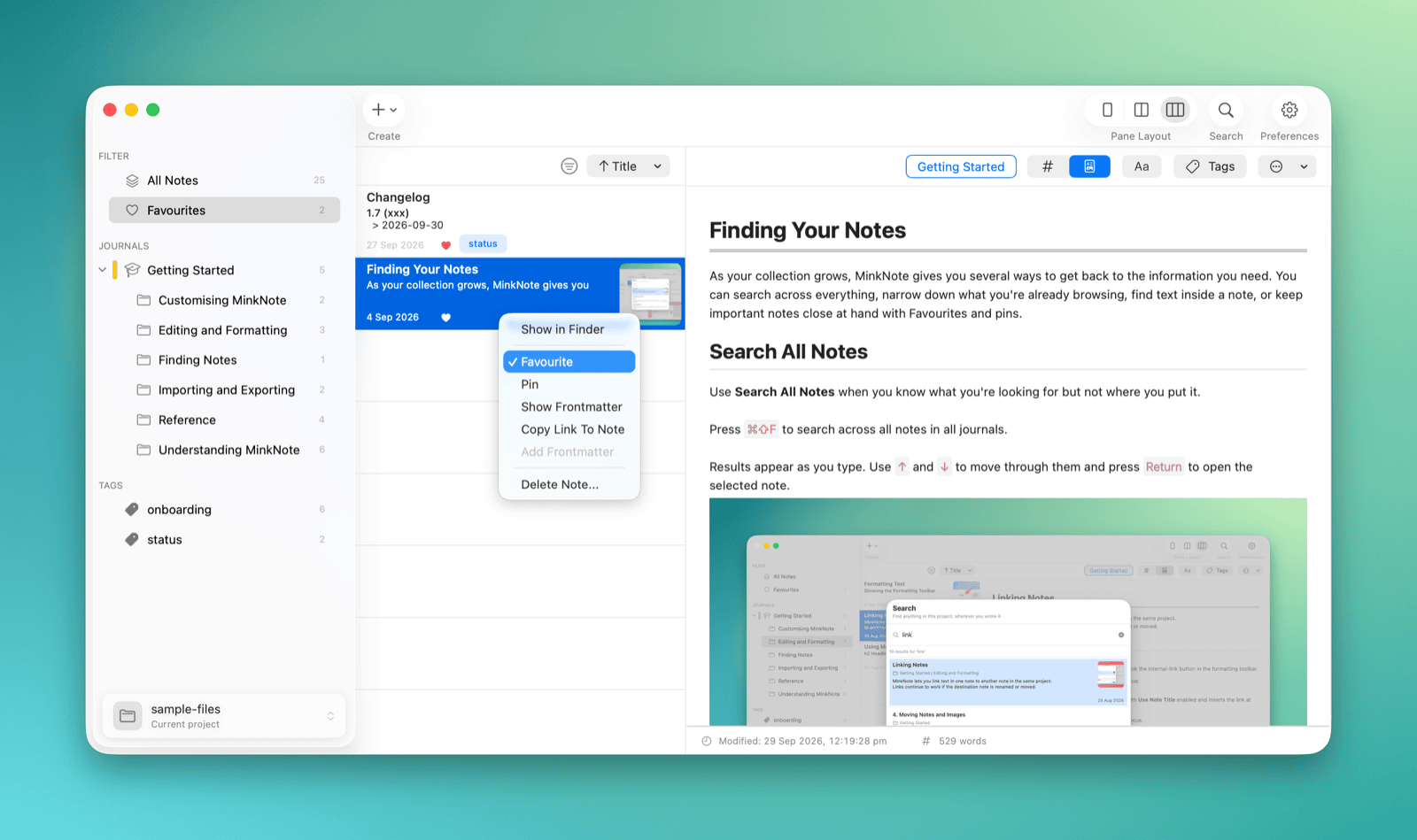 A note stays in its original journal or folder. Adding it to Favourites simply gives you another quick way to reach it.
Pinning Notes
Pin a note when you want to keep it at the top of a journal or folder while you’re working with it.
Right-click a note and choose Pin. Pinned notes appear in a separate PINNED section above the other notes, making them easy to reach.
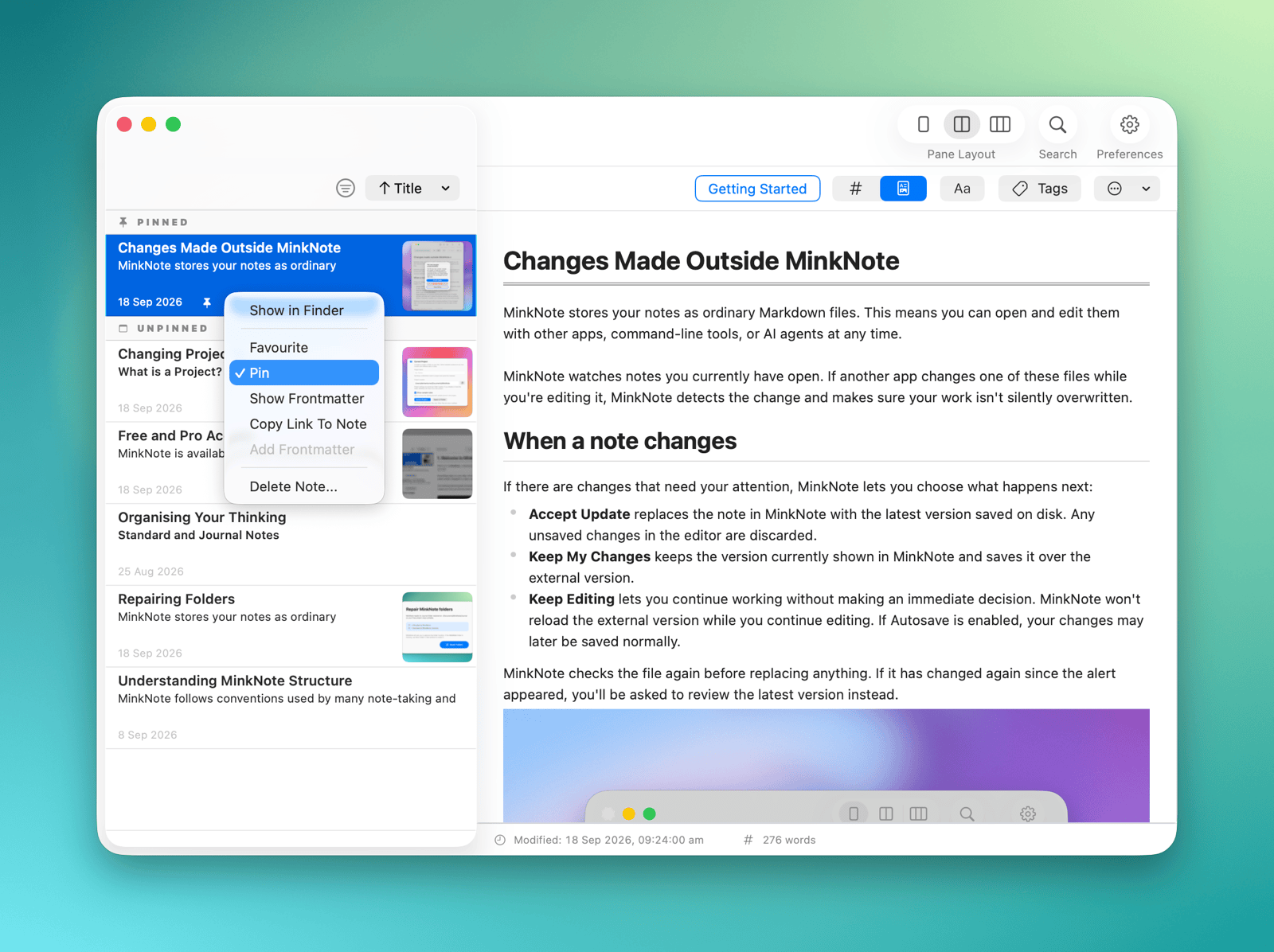 Pins are especially useful for notes you’re actively working on, reference material you need frequently, or anything you want to keep visible for a while.
To remove a pin, right-click the note again and choose Pin to turn it off.
Pins or Favourites?
They serve slightly different purposes:
- Pin a note when you want to keep it prominent within its journal or folder.
- Favourite a note when you want quick access to it from anywhere in MinkNote.
A note can be both pinned and a favourite.
Browse by Tag
Tags let you bring together related notes even when they’re stored in different journals or folders.
Select a tag in the Tags section of the sidebar to see every note using that tag.
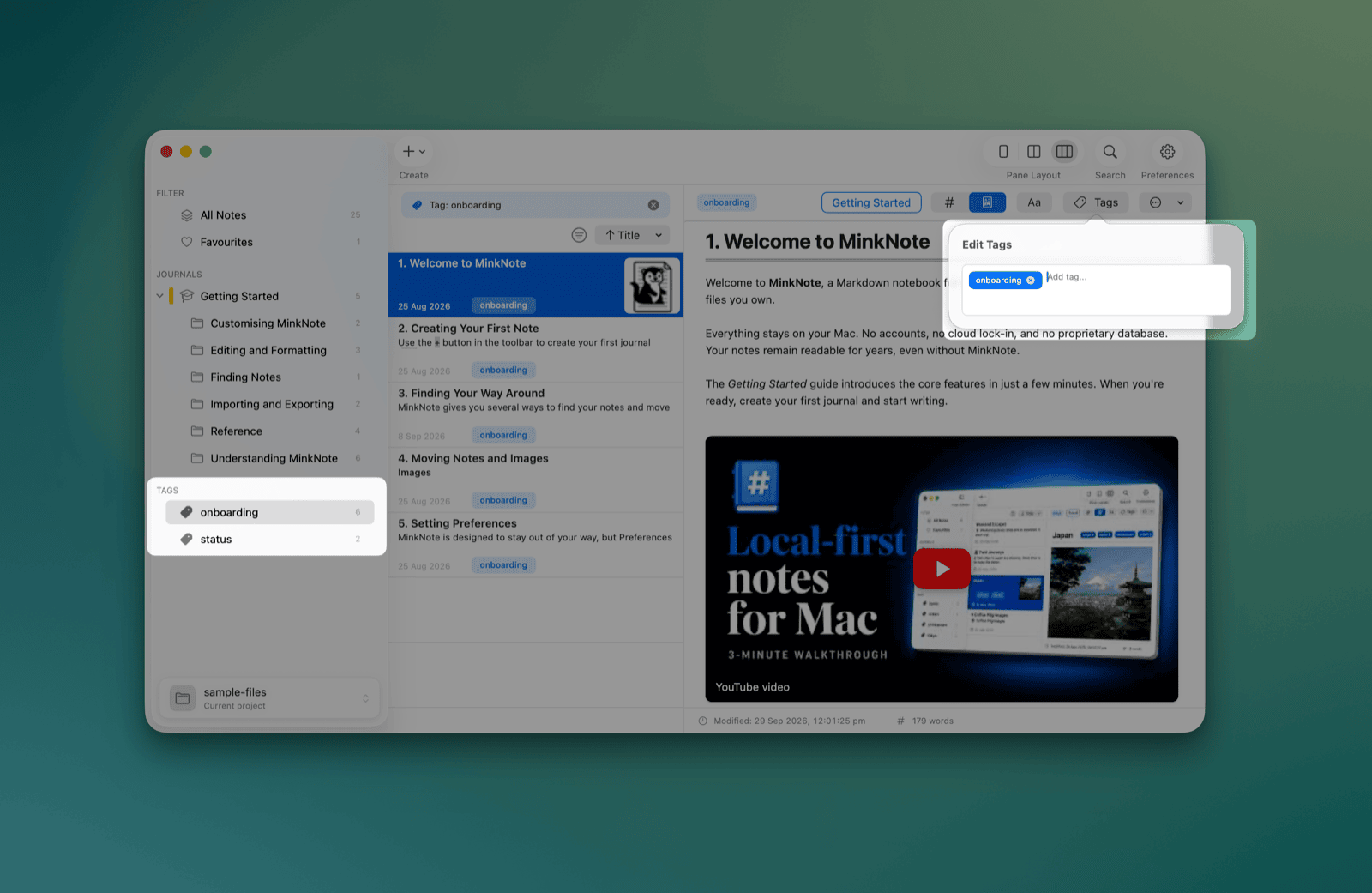 To add or remove tags from the current note, use the Tags button (
⌘T).
Tags are stored with your Markdown notes, so they remain part of your files rather than being locked inside MinkNote.