Linking Notes
MinkNote lets you link text in one note to another note in the same project. Links continue to work if the destination note is renamed or moved.
Add a Link
- Select the text you want to turn into a link.
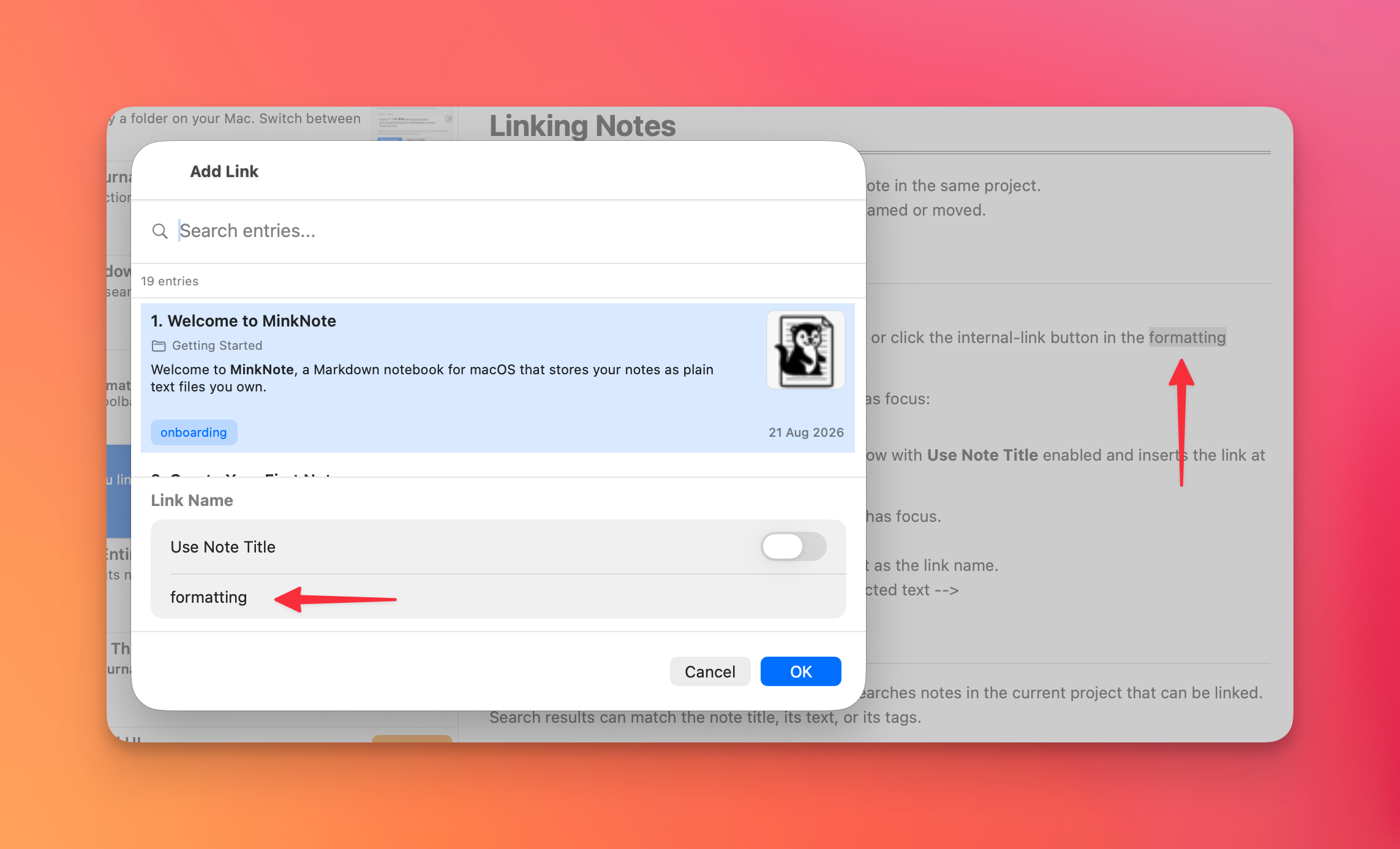
- Right-click the selection and choose Add Link, or click the internal-link button in the formatting toolbar.
You can also press Command-K while the editor has focus:
- If text is selected, it is used as the link name.
- If no text is selected, MinkNote opens the window with Use Note Title enabled and inserts the link at the current cursor position.
Command-K is available only when the note editor has focus.
The Add Link window opens with your selected text as the link name.
Choose a Note
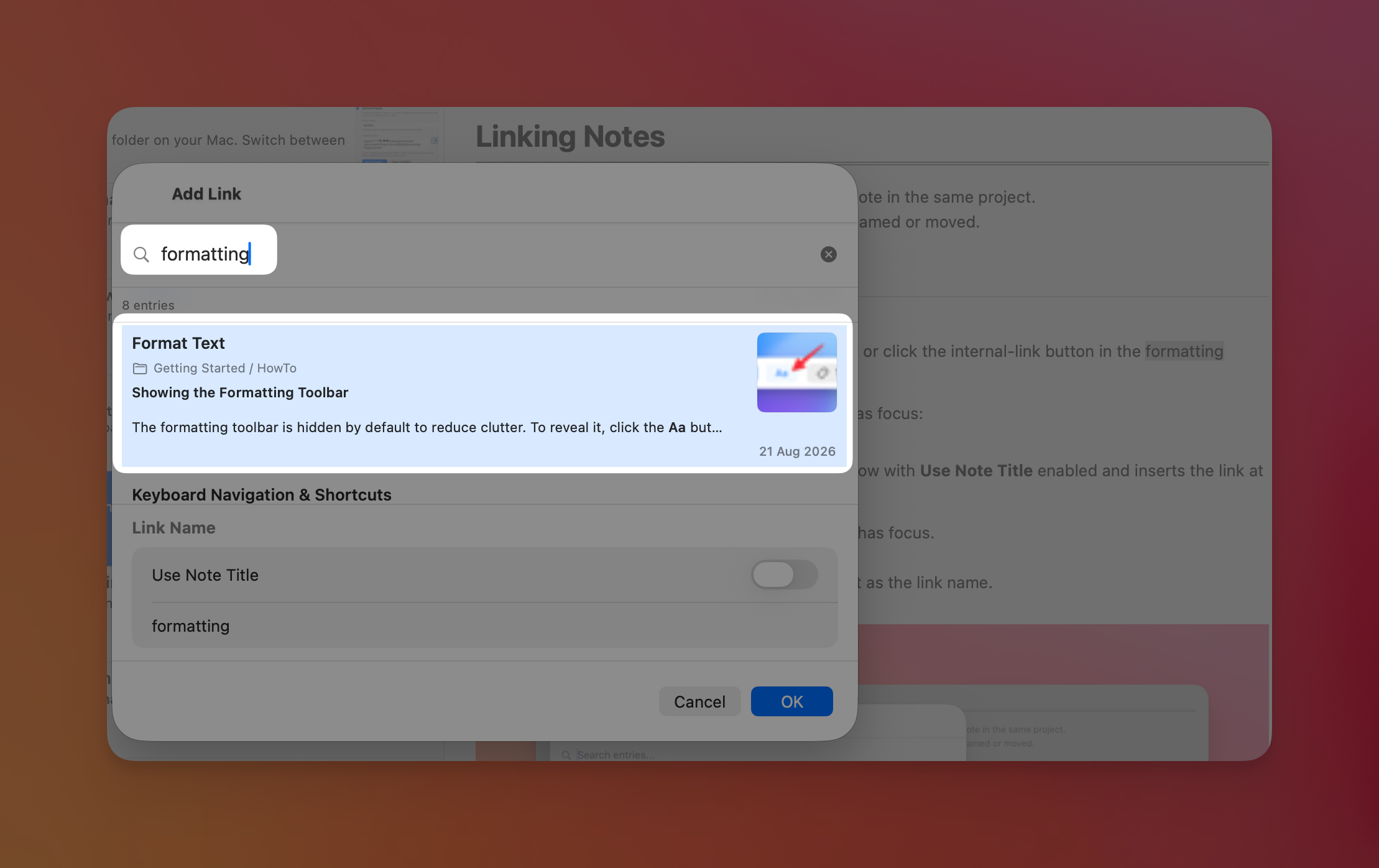
Type in Search entries to find a note. MinkNote searches notes in the current project that can be linked. Search results can match the note title, its text, or its tags.
Select a result with the mouse, or use the Up and Down arrow keys. The results list follows your selection as you move through it. Press Return to choose the highlighted result.
Press Escape to close the window without adding a link.
Name the Link
The link name is the text that appears in your note.
- Leave Use Note Title off to keep the text you selected, or enter a different link name.
- Turn Use Note Title on to use the destination note’s title instead.
- When Command-K is used without a selection, Use Note Title is on and cannot be turned off.
The text in your note changes only when you click OK. If you turn the option off again before clicking OK, the original selected text is restored.
Click OK to add the link, or Cancel to leave the note unchanged.
Copy a Note’s Link
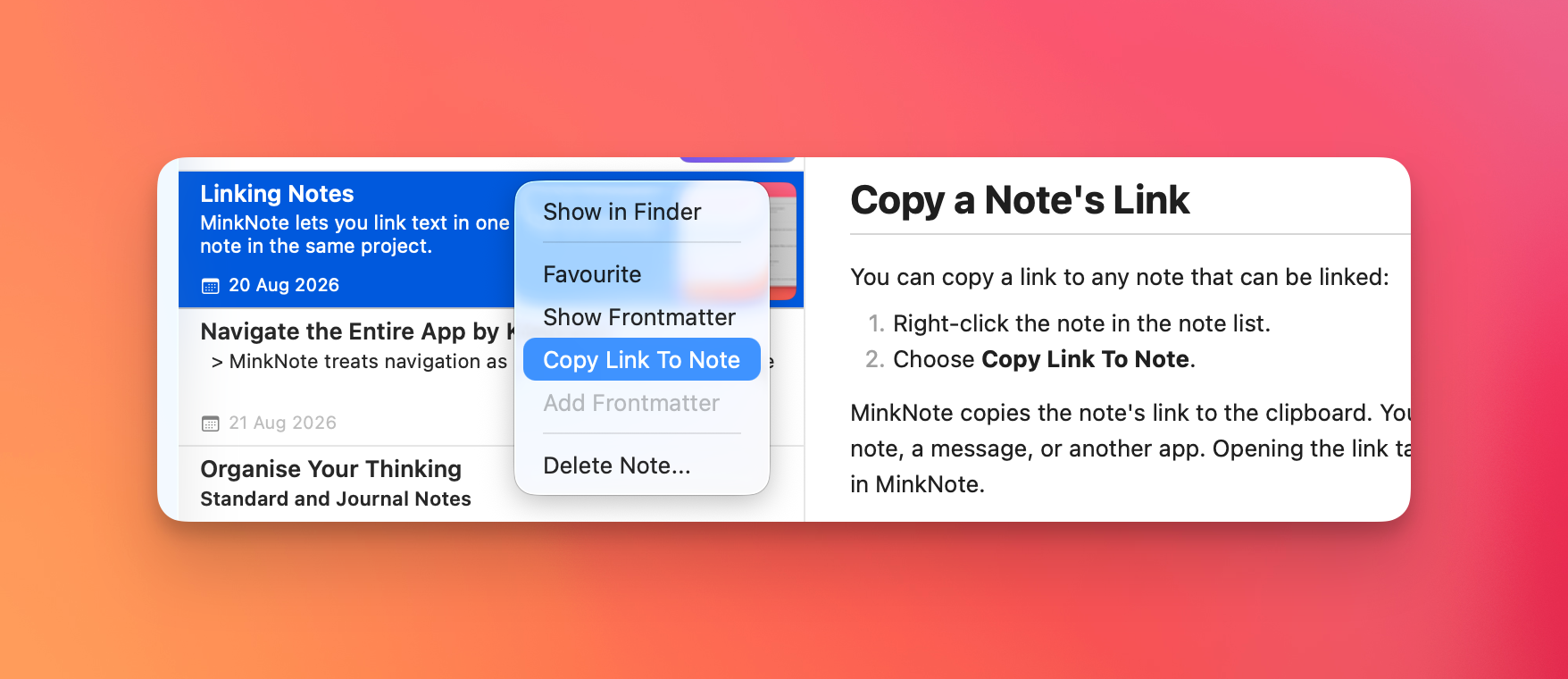
You can copy a link to any note that can be linked:
- Right-click the note in the note list.
- Choose Copy Link To Note.
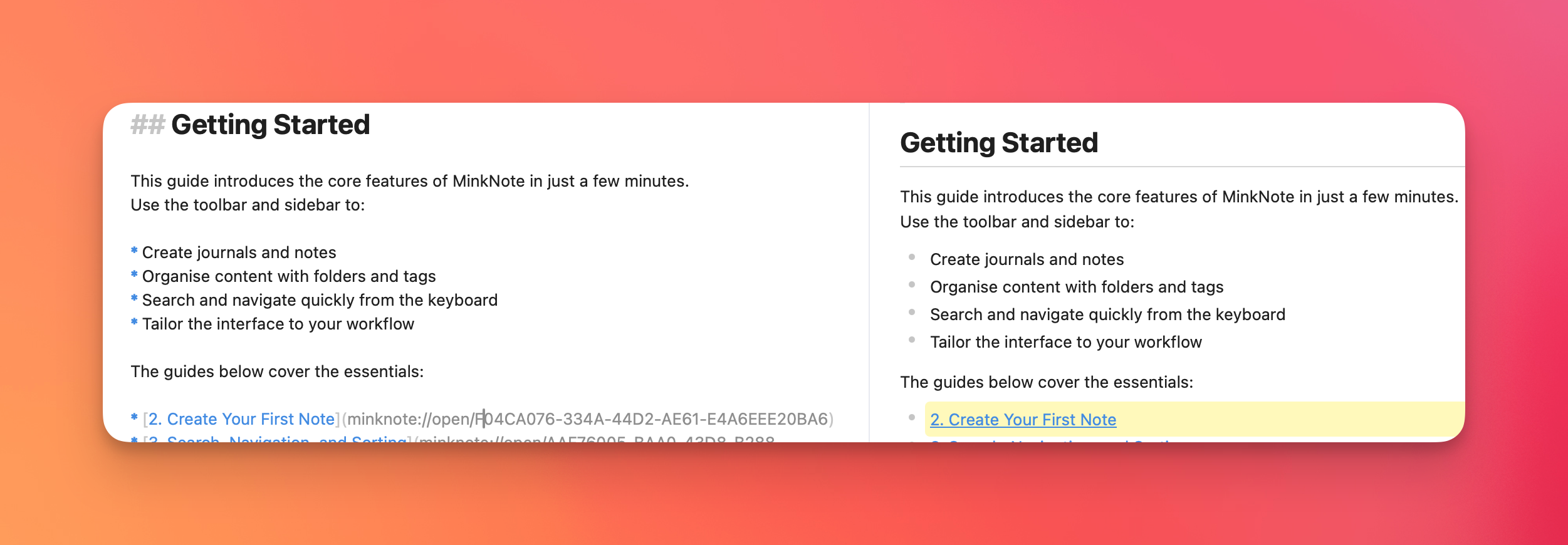
MinkNote copies the note’s link to the clipboard. You can paste it into another note, a message, or another app. Opening the link takes you directly to that note in MinkNote.
Portable Journal Export
MinkNote will shortly support exporting all the notes in a journal. During export, MinkNote links will be converted into portable Markdown links that point to the exported note files.
This means links will continue to work in the exported journal even when it is opened outside MinkNote. The exported links will take account of the notes’ folders and filenames.
Follow a Link
Click an internal link to open its destination note in a new window. You do not need to open the destination journal or folder first.
If the destination note cannot be found in the current project, MinkNote leaves the link in place and shows a note-not-found message when you click it.
External web links continue to use the regular link tool and open as usual.